When you release, each student receives a report PDF. What is on it is a layout you compose once per assignment, or once per course, in the report builder. What students see describes the result from the student's side; this article is the builder.
Opening the builder
On the assignment page, the Report step shows What students will see as three thumbnails: the cover sheet, the annotated submission, and the appendix. Edit report layout opens the builder. From a paper, the Preview button in the toolbar opens the same builder on that student's real report.
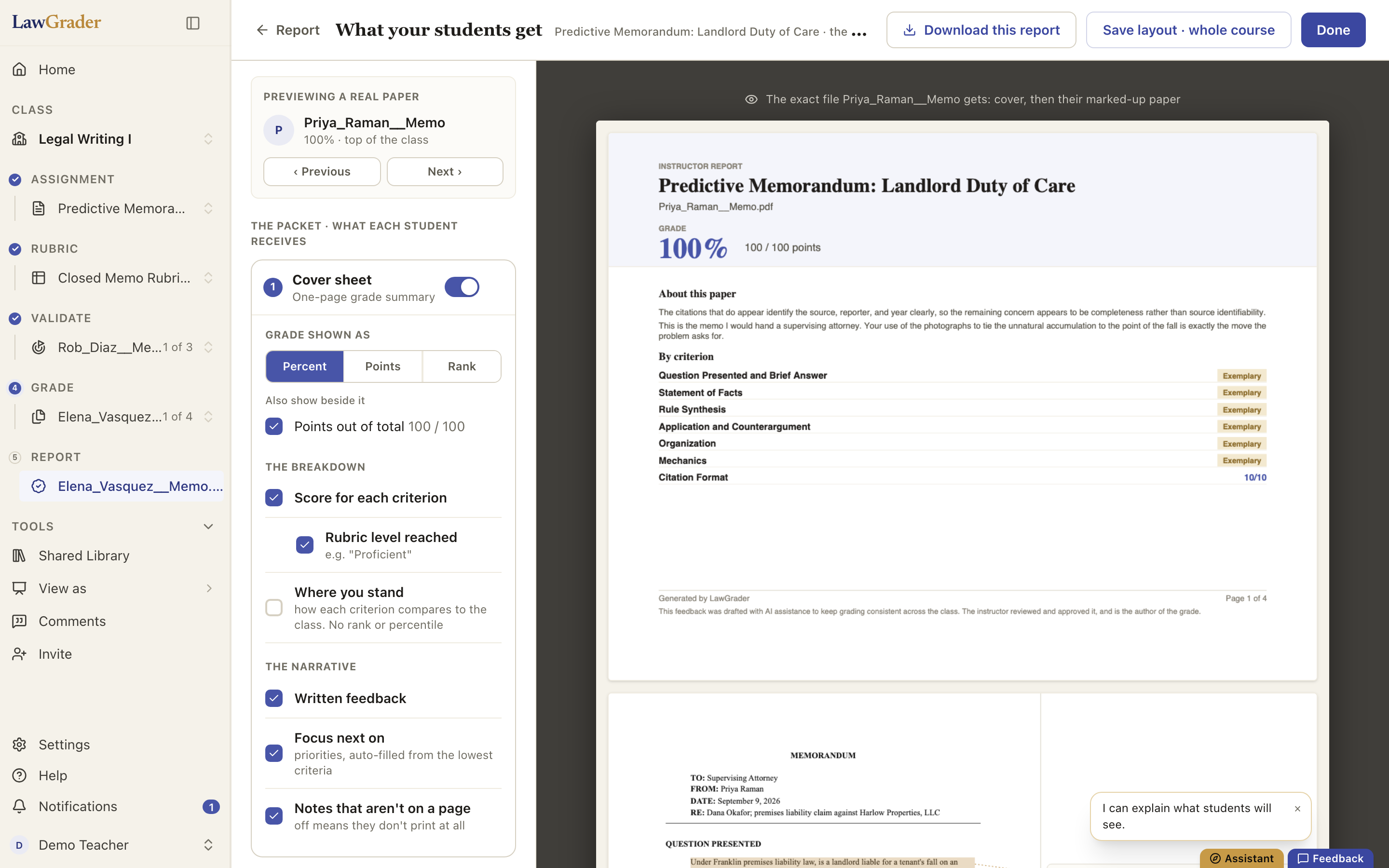
The builder previews a real paper from the assignment (Previous and Next step through them), so every switch you flip shows its effect on an actual student's report, not a mock.
The packet
- Cover sheet, a one-page grade summary. Overall grade puts the grade at the top right, shown as Percent, Points or Rank. Criteria adds one row per rubric criterion, with two switches under it: Scores prints each row's points and the total (when the class is curved or a grade adjusted, a line between the rows and the grade says so, "Class curve +2.9", so the rows add up), and Levels (off unless you turn it on) prints the level each criterion reached. A rubric scored in points only has no levels, so Levels is unavailable on it. Under Completion only the cover never shows points: Scores is off, so the criteria appear only as levels, and on a points only rubric the cover carries no criteria at all. Overview prints the paper's Overview card, and What to work on next (off unless you turn it on) prints its Work on next card; both are written with the grade and edited on the paper, where they are the first two whole paper notes. Every comment that is not pinned to a passage prints in full under Notes on the whole paper, labelled with its criterion. The cover does not repeat the margin comments: those are on the paper, beside the words they are about.
- Student submission, always included: their paper as submitted. Annotations on means your highlights and margin notes print beside the text; off is the clean paper.
- Appendix, optional: the Assignment prompt as you handed it out, and the full Rubric, with the level the paper received shaded. Under Completion only the rubric prints no points.
Saving and scope
Changes save as you make them. Save layout · whole course makes this the default for the class, so every assignment in it inherits the layout; without it the layout applies to this assignment only. Saving changes the layout and nothing else: students get their reports when you Release, back on the Report step. See Releasing grades and reports.
Getting a copy yourself
Download this report in the builder saves the exact file the previewed student will receive. On a paper, the Download marked-up document button in the toolbar does the same for that paper. For a whole class at once, use the exports on the assignment page: see Exporting grades and papers.