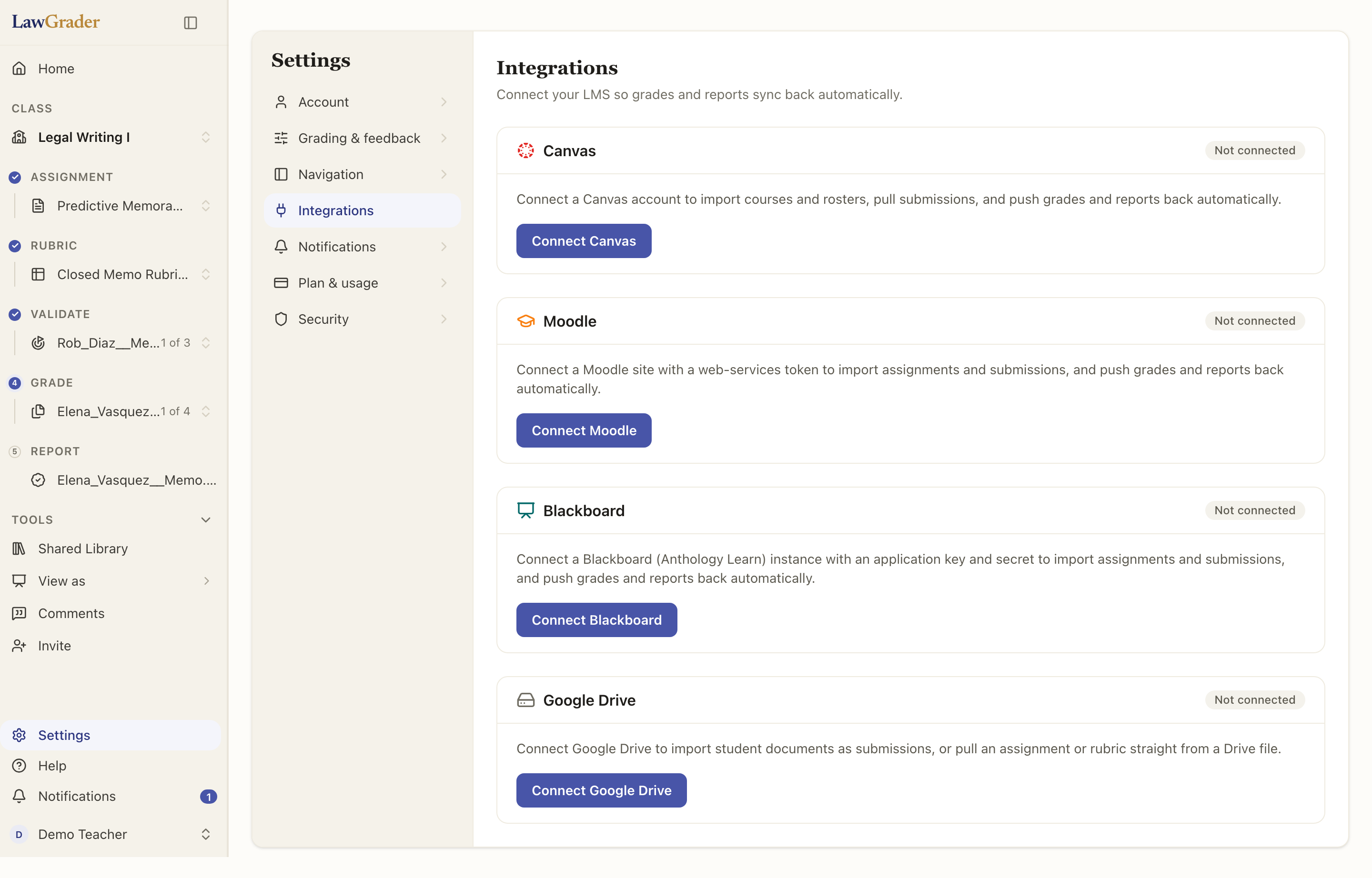
Connecting your LMS lets you pull student submissions into LawGrader and push grades and report PDFs back out, so grading fits into the workflow you already have. You connect once, from Settings, then link individual assignments as you go.
For a side-by-side of what each LMS can and cannot do, see Which LMS features work.
Canvas
Canvas has two ways in, and the connection card always tells you which one you are on.
- School sign-in. You approve LawGrader once inside Canvas, and there is no token to copy. Access renews itself, so it will not break mid-semester, and your Canvas administrator controls what it can do. Available when your school has set it up.
- Personal token. You create an access token in Canvas, under Account, then Settings, then New Access Token, and paste it in. It carries all of your own Canvas permissions and keeps working until you delete that token in Canvas. Use it for a second Canvas account, or when your school has not enabled sign-in.
Once connected, you can create a class from a Canvas course, or link an existing class, and import assignments and rosters.
Checking and fixing a connection
Every LMS connection has a manager page (open Canvas, Moodle, Blackboard, or Brightspace from Settings, then Integrations, then Manage connections). Each connection shows the credential it uses, the account it acts as, how access is kept alive, and whether it is currently Working. If a token was revoked, or your school disabled the app, the card says Not working and explains why, rather than failing quietly the next time you import submissions or release grades. For Moodle, a missing web-service function is named exactly, so you can forward the line to your admin.
Repairs keep your classes linked, so nothing has to be relinked afterwards:
- Sign in again (Canvas school sign-in), Replace token (Canvas personal token, Moodle), or Replace credentials (Blackboard) swaps the credential in place. Reconnect as the same account on the same site, or you get a second connection instead of a replacement.
- Switch to school sign-in moves a Canvas personal-token connection over to your school's sign-in, offered when your school supports it.
Disconnect is the one that costs you something: it unlinks every class and linked assignment using that connection, and for a Canvas school sign-in it also revokes LawGrader's access inside Canvas. The dialog lists exactly what will happen before you confirm. If you are only fixing a broken connection, use one of the repairs above instead.
Moodle
Connect Moodle with your site URL and a web-services token. Moodle admins control which web-service functions a token can use, so if something is missing, LawGrader tells you exactly which functions to enable. After that, browse your courses, link an assignment, and import its submissions.
Blackboard
Connect Blackboard (Anthology Learn) with the app credentials your administrator registers. You can then browse courses, link an assignment to a gradebook column, and push grades back to it.
Brightspace
Connect Brightspace (D2L) by signing in to it and approving LawGrader. There is no token to create and nothing to copy or paste, and access renews itself so it will not break mid-semester. Your administrator registers LawGrader with Brightspace once, before teachers can connect; until then the Brightspace card does not appear on the Integrations page.
Once connected, browse your courses, link an assignment (Brightspace calls these Assignment folders), and import what students submitted. Grades and written feedback go back to the assignment's grade item.
LawGrader only ever acts as you, so anything you cannot do in Brightspace, it cannot do either.
Linking an assignment
Connecting is account-wide; linking is per assignment. On an assignment, use the Import option for your LMS to pick the matching course and assignment. Grades you release then flow back automatically.